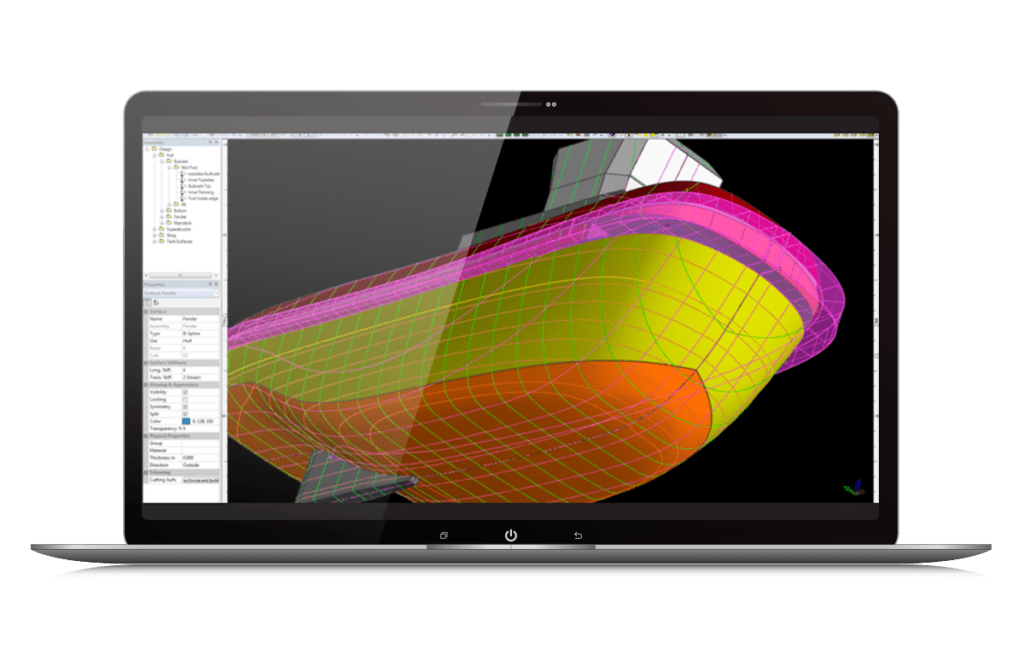
There are several commands that are useful for fairing a design. These operate on groups of control points: either controls within a particular row or column; a patch of control points in a surface or across bonded surfaces, or arbitrary control points.
The smoothing and straightening commands are particularly useful for manipulating the edges or features of a surface, e.g. creating a straight bow profile, producing a smooth, fair chine line, etc.
Smoothing may also be useful when applied to a patch of control points for maintaining a fair net and hence a fair design.
The align functions are useful when you wish to place control points in the same vector or plane. The control points may be from the same or different surfaces. These functions are also useful for fairing across the edges of bonded surfaces. If the Align to Plane or Align to Vector functions are called while holding the shift key down a constraints dialog box will appear. In this dialog you may specify movement constraints in certain planes.
The size function may be used to enlarge or reduce a portion of a design, by re-scaling a group of control points. In a similar way, certain areas of a design can be rotated by rotating the control points in that area. To re-size or rotate complete surfaces, please refer to the Size and Rotate commands in the Surfaces menu, these are described in the Surfaces section.
In this section:
· Smoothing and Straightening - Rows or Columns
· Smoothing or Straightening a Patch
· Discontinuities and Feature Lines
Any complete or partial row or column of control points can be straightened into a straight line, or faired into a smooth curve.

To smooth or straighten three or more control points
· Click on the control point at one end of the group to be straightened.
This control point will be the control point at one end of the selection to be smoothed or straightened. If after selecting one point you wish to change your selection, simply click anywhere in the background of the window.
· Hold down the shift key.
· Click on the control point at the other end of the group.
This control point will be the control point at the other end of the selection to be smoothed or straightened. It should lie in the same row or column as the first selected control point. If you wish to change your selection after selecting a second point, release the shift button and start again with the first point.
· To fair the control points, select Smooth Controls from the Controls menu and select the desired stiffness.
The stiffer the smoothing, the straighter the line will become. Smoothing is done in three dimensions.
· or to straighten the control points, select Straighten Controls from the Controls menu and select whether you wish to straighten in 2D or 3D.
If you straighten in 2D, the control points will be forced to a straight line in the current view direction, leaving the third direction unchanged. This can be particularly useful for producing straight bow profiles or transoms; this is done by using the Straighten in 2D command in the profile view. Straighten in 3D will produce a straight line in all three dimensions.

You can choose to undo a smooth or align operation by selecting Undo from the Edit menu.
Smoothing and Straightening may only be performed in a single surface; it may not be performed over two or more surfaces.
Note
The Straighten Controls and Smooth Controls commands only work for control points that belong to the same surface.
The Smooth and Straighten commands in Maxsurf can also be applied to a patch of control points that spans more than a single row or column.
A patch is a rectangular grid of control points that can be as small as one row or column, or as large as the entire surface. Not all the points to be smoothed need to be selected as Maxsurf will determine the size of the patch from the points that are selected.

For example, in the diagram above, if only points A and B had been selected (instead of using the selection box) Maxsurf would have smoothed exactly the same group of control points, since points A and B define the limits of the patch.

To smooth or straighten a patch of control points, select them and choose Smooth Controls or Straighten Controls from the Controls Menu. An example of a smoothed patch is shown above. If straighten had been applied in the previous example, the control point rows and columns in the selected patch would lie on straight lines.
This command may be used to move an area of a surface.
· Select the control points you wish to move.
· Choose Move Controls from the Controls menu.
· In the dialog type in the desired movements.
· Click OK.

The Size Controls command may be used to enlarge or reduce an area of a surface.
· Select the control points you wish to resize.
· Choose Size Controls from the Controls menu.
· In the dialog type in the desired length, width and depth dimensions; proportional scaling may be achieved by ticking the Proportional Scaling boxes next to the dimensions.
Note that the values that appear when the dialog is first displayed are the dimensions of the bounding box containing the desired control points. To scale the control points, type in the dimensions of the new bounding box you wish the control points to occupy.
· Choose the origin for the re-scaling in the Size About fields.
This will control the direction in which the control points are moved. The Size About point will remain unchanged when the control points are resized.
· Click OK.

To rotate a group of control points:
· Select the control points you wish to rotate.
· Choose Rotate Controls from the Controls menu.
· Type in the rotations about each of the axes.
· Type in the rotation centre.
· Click OK.

The align commands are for making groups of control points co-linear or co-planar. The Align to Vector command aligns points along a 3D line in space, while the Align to Plane command aligns points to a specified plane.
Align to Vector differs from Smooth and Straighten in that the points selected do not have to be in the same row or column, or even in the same surface. You may select any control points to define the vector or plane, and then align any control points with that vector or plane; the control points need not lie in the same surface. You must also select all the control points to be aligned, patches may not be selected as they are in the Smooth and Straighten commands.
To use Align to Vector:
· Select two control points with the shift key held down.
· While still holding down the shift key, select one or more additional points.
· Select the Align to Vector command.
The first two selected control points define the vector; all subsequently selected points are moved to the point on that vector closest to their original position:
· Before aligning, endpoints with vector defined by two middle points

· With shift key held down, select two middle points to define vector

· With shift key held down, select two end points to be aligned

· Select Align to Vector; end points are moved to closest corresponding points on the vector

This feature is very useful for ensuring co-linearity of control points either side of a bonded edge to ensure that the surface is slope continuous across that edge, or for creating a straight bow. Align to vector can also be used to ensure a smooth forefoot, going from the surface’s bottom edge to the bow; ensure that the corner control point and the two control points on each side, immediately adjacent to it, are co-linear:
· Before alignment, discontinuity at forefoot

· After alignment, smooth transition at forefoot

Align to Plane works in a similar fashion to the Align to Vector command, except that the first three points selected define a plane in space that all subsequently selected points are moved on to.


Control points, other than those defining the plane, are moved to the closest position in the plane.

This means that a line between the new and old positions of the point would form a line that was normal to the plane.
The Compact function is used when you wish to position one or more control points precisely over an existing control point. This can be used to create a knuckle or discontinuity in the surface or to collapse a side to a point e.g. at the bottom of a bow cone (see Discontinuities and Feature Lines on page 167).
To compact two or more control points
· Select one control point,

This control point is the one that you wish all other control points to compact onto. It will remain stationary when you select the Compact function.
· Hold down the Shift key and select one or more other control points.

These are the control points that you wish to compact to the first selected control point.
· Select Compact from the Controls menu or type Ctrl+K.

This will compact all selected control points to the first selected point.
Note:
The Compact command does not hold the compacted points together permanently, i.e. if you select one with the mouse and move it, the other points in the same position will not move with it. If you wish all the points to move as one, select all the compacted points (with a selection box) and then select the Group command.
Also see:
Discontinuities and Feature Lines on page 167
Control point grouping is provided to help with the movement of multiple control points. Grouping allows the movement of a number of control points that move as a whole whenever a single control point from the group is moved. To group several control points simply select the points that you wish to be in the group and choose Group from the Controls menu or type Ctrl + G.
Note: It is possible for you to group together several groups that have been previously created, to create a single group of control points.
The Ungroup function performs the reverse of the Group function. Choose the group that you wish to ungroup by selecting a control point from within the group. Choose Ungroup from the Controls menu.
Single control points cannot be marked as grouped – you must select at least two control points to group them. If a control point is grouped to another which is subsequently deleted (by, for example, deleting the surface, row or column in which the control point lies) the remaining control point will become ungrouped unless there are other, undeleted, control points in the same group.
It is important not to confuse the functions of the Group command and the Compact command. Group allows you to move control points simultaneously, even if they occupy different positions in space. Compact forces several control points to the same position in space, but does not force them to move simultaneously. If you wish to have several control points occupy one position and move together, you will need to select the Compact command followed by the Group command.
It is possible to use compacted grouped control points as a means of introducing a discontinuity into a surface.
Consider a surface whose stiffness is set to flexible (order 3) in the transverse (column) direction. The following example shows how the use of two rows of control points can form a discontinuity in the surface.
Illustrated below is a Perspective view of the net and shape of a simple surface.

If an additional control point row is added, and its points compacted directly on top of the existing intermediate control point row, a hard corner is created running along the surface, as shown in the following illustration.
The scope of the discontinuity may be changed by splitting the superimposed row in some of the columns.
By splitting the row at the right hand edge of the surface as shown it is possible to fade the hard edge out. The surface shows a smoothly curved section at its right hand edge and a section with a hard corner at its left hand edge.

To achieve a discontinuity of this type you need to compact several control points together. The number of points required to achieve a hard corner is always one less than the order of the surface in that direction. For example, if you have a surface that is flexible in the transverse direction (Order 3), you will only need to superimpose two control points to achieve a hard corner in the section. If, on the other hand, the transverse stiffness is set to stiff (Order 6), five control points will need to be compacted together to form the corner.
If you wish to display the line along the corner you have created, select Feature Lines from the Contours menu item. The effect will be similar to the following:

Note:
Do not compact more control points than necessary to create a knuckle. The required number of control points is the surface stiffness minus 1. For example: a stiffness 4 surface requires 3 compacted control points to create a knuckle.